You can now create your own web browser using Microsoft PowerPoint. No need of any programming skill. Even a layman can do this if she knows Microsoft PowerPoint. Go through the following steps.
Enabling Developer tab
Open your Microsoft PowerPoint and look at the top menu bar. Just do a verification whether the "Developer" tab is visible or not. If it is not visible then do the following to make it visible otherwise you can skip this step.
For PowerPoint 2007: Click on the Microsoft button present at the top left corner. Some menu will open. At the bottom part you will see a button called "PowerPoint options", click on it. A window will open where you can enable the "Show Developer tab in the Ribbon" check box which is present in the "Top options for working with PowerPoint" section. If you still have any doubt then click here to view the snapshots.
For PowerPoint 2010: Go to "File → Options". Then choose "Customize Ribbon" in the categorizes pane. Then in the list of main tabs choose "Developer", press "OK".
Creating web browser object
Given below a figure to help you. In the developer tab you can see the tool bar options.
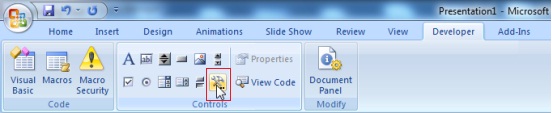
Click on the "More Controls" icon as shown in figure, you will see small window. Scroll down and select "Microsoft WebBrowser". Drag and release on your slide to create an object of the web browser. If any other object is previously present in the slide except the web browser then delete them.
Create 3 more objects
Now you need to create two more objects. One is a text box, second is a label and 3rd one is a command button. All are present in the Develop tab, clearly visible in the above image. After adding text box, label and command button the slide look like as follow.

Creating the actions
Double click on the command button that you have recently created. It will take you to the visual basic editor. Now press ctrl+A and delete previously existing code(if any). Now copy the following code and paste it in the visual basic editor.
Now press f5 for slideshow your PowerPoint and enjoy the browser. You can also save your powerPoint in .pptm format.
You can also read How to create a media player using PowerPoint.