Get Email/SMS Notification When Alexa Rank Changes

If you are blogger or webmaster, you must know the importance of Alexa Rank. Although it does not directly affect your page rank or visitors, it has some other indirect consequences which you may experience during your blogging journey. Alexa is the only website which gives you most precise rank and it maintains all historical data of the sites which have rank below 1000,000. All blogger and webmasters check their Alexa rank on a regular basis. But each time the result does not bring a smile on your face. You really become serious when one of your competitor is leading and you are lagging behind. But all these are not today's topic of discussion. Lets go to the real topic.


How to get notified when Alexa rank changes


It's always not feasible to visit Alexa every-time to check your site's rank. Moreover, the rank does not change each time you verify it. So what to do ?

Well, why don't you think the reverse process. Get notified via email/SMS when your Alexa rank changes. Yes, it would definitely a nice option. You don't have to check it frequently. Just reamain busy with your daily work and get notified when your rank changes. 

To get started just do the following steps

Alexa rank tracker
  • Make a new copy of this spreadsheet
  • Provide your site URLs at respective places in the spreadsheet. You can track maximum 3 sites.
  • Provide your email to receive alerts.
  • Provide the time to get alert in HH:MM format. For example, if it is 9:03 PM provide 21:03.
  • Then go to menu bar and start the tracker. The status will change to green and the tracker is ready to track your rank.
  • That's all.
To get SMS alert you can change its parameter to YES in the spreadsheet but you have to first register your mobile under Google Calendar.

How does it work


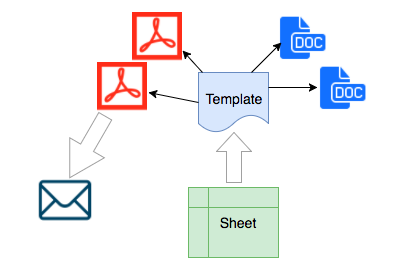
The heart of the system lies in Google Script. It makes an API call to Alexa exactly at the time specified by you and get the result in XML format. It then compares your current rank with previous rank which has been stored in the spreadsheet. If the rank differs, it sends the mail.
Track Alexa rank with Google Script
Note: You can use this trick only for your personal purposes
For any queries drop a comment. For developers the code is readily available and you can view it in script editor. If you have any doubt regarding the code we can discuss here.

Read more

Create an Impressive Quiz Using Microsoft PowerPoint

MS PowerPoint is a very powerful office tool for creating outstanding presentations. I consider this as the most user friendly tool for creating beautiful charts and graphs within a short time. You will be even surprised to know that you can also use PowerPoint as a quiz maker. Today we will see how to create beautiful quizzes using PowerPoint.

All people know the traditional uses of PowerPoint. But now we will cross the boundary and see what else we can do with PowerPoint. 


Recipe for creating a quiz using PowerPoint


We have created a handy interface using PowerPoint and VBA to frame questions and answers. There will be multiple slides where you can put your questions along with their possible options. At run time when a person will play the quiz, the questions will be fetched from the slides one by one and displayed on screen.
 

PowerPoint Quiz Maker 

  • To create a new question just copy-paste an existing slide. That means you have to make an exact replica of the slide. To do so just right click on the slide thumbnail present in left side of PowerPoint and click on Duplicate Slide.
  • In each slide you will find six text boxes. The first text box contains the question, the successive 4 boxes contain the options and the last box contains the answers.
  • You can provide multiple answers for a single question by separating the options by comma but remember never interchange the positions of any text boxes.
  • All slides where you set the questions are hidden. You can ensure their visibility by right clicking on the slide thumbnails on left hand side of PowerPoint.
  • While distributing the quiz just save the PowerPoint as PowerPoint show so that nobody can see the answers directly.


Developer point of view (others may skip this section)

  • The entire GUI is handled by two user forms in VBA
  • Press Alt+f11 to open visual basic editor
  • Double click userform1 to view the code behind it
  • At run time, when you advance through the questions, VBA fetches the questions from the text boxes present in the slides.
  • When you press the submit button, it is first evaluated whether user's answer is correct for the question and the result is stored in an array.
  • Finally all the results are collected from the array and displayed on final result screen.
:)
Read more

An Opportunity For Newbie Bloggers (Giveaway)

So we have planned to offer a domain name free to a newbie blogger. This is our first giveaway and we are happy to declare it. In near future there can be more. So I request all of you to subscribe to our newsletter to get in touch with us. You can also follow us in facebook.

Just appear the following quiz regarding basics of SEO. The winner will get our gift. Questions are very easy, daily life scenarios and fundamental questions. Just apply your common sense and experience.

* Required


Quiz Questions

Read more

6 Reasons Why I Choose Netvibes as The Best RSS Reader

July 1 is the sun set of Google Reader, keeping that in mind I stared looking for a good RSS reader which can fulfill my hunger for RSS. Many days before I had written an article where I did a precise comparison among some alternatives of Google Reader. But that was not even sufficient for me. I was trying to hunt such a reader which will be good in both user-interface and functionality. Finally I came up with Netvibes and I started using it. Since last one month I am in love with it and got addicted to it as well. Here are some of its beautiful features I would like to consolidate:

1. Google Reader like appearance ()


If you are acquainted with the appearance of Google Reader then Netvibes may solve your need. Although it is not exactly similar to it but you can change its view to "reader" type which will give you a similar kind of experience like Google Reader.

widget view & reader view

In the widget view you can have a beautiful dashboard appearance while in the reader view you can have Google Reader like appearance.


2. Viewing in different layout ()


As of now it supports 3 different layouts in "reader" view. All layouts support infinite scrolling.

Different layouts
a. List
It is the traditional layout just like Google Reader. Only the title will be shown, clicking the title expands the entire topic.

b. Expanded
All articles will be expanded by default, just scroll down and read. It slightly increases the loading time as it downloads the entire article instead of summary.

c. Mosaic
This layout is my favorite as it displays small boxes with a thumbnail with the title on it which greatly increases its readability.


3. Highly customizable dashboard ()


In the widget view, as discussed above, you will get a highly customizable dashboard. Here are some of the customizations you can do:
  • You can categorize your RSS into different categories and place them under different tabs
  • Under each tab you can add your favorite contents and widgets.
  • Each widget can also be customized like how many articles you want to show, do you like to display them in a magazine style or the other, color of the widgets and many more.
  • When you view the widgets in normal view a small tool tip comes while hovering the cursor on the articles, which comes quite handy for reading details about a topic quickly.
  • You can easily change the position of the widgets as they support drag n drop feature in browser itself.
  • After all, Netvibes also gives you a wider range of themes to decorate your dashboard as per need.

4. Export-Import OPML files ()


It is always necessary to get a back-up of your RSS subscriptions in a file so that it will help you later to re-import them in other services and you can also track all your subscribed feeds offline. Netvibes will fully help you for the same. OPML is a popular format to export RSS feed URLs. This is a simple XML file which contains all your subscription information. You can easily import OPML files in Netvibes exported from others services and can export your current subscriptions as well.

Export and Import feeds

For export-import, simply click on the Add Content link present at the top left corner and click on add feed. You will see something on your screen as shown in above image. Here you can export import your RSS feeds.

5. Managing articles ()


Netvibes provides a very good interface to manage your articles efficiently. You can do following operations on them
  • Mark as read and unread are two very important but common features which you can avail in Netvibes.
  • You can also mark articles as Read Later, which automatically sends them to a special folder. You can easily view them later just exploring the Read Later folder.
  • You can share aricles in Facebook, Twitter, Email and can instantly communicate to your friends right from your dashboard.
  • Keyboard shortcuts are really very handy and Netvibes gives a handful of keyboard shortcuts here

6. Browse through categories while adding feeds ()


Netvibes has a hundreds of predefined resources to subscribe. For example if you want to subscribe for news category, then simply click on the news link, Netvibes will show you all the available resources present under that category.

Browse through categories

I personally believe this very useful as you don't have to struggle to search for useful resources. Everything is pre-available, just you need to press the subscribe button.

I hope this article will help you to explore more in Netvibes. You are free to share your views in  comment section.
Read more

Create Interactive HTML Tables With Google Docs Easily

The static era is gone now. Today we expect everything to be dynamic. When it is the matter of displaying a statistical data on a webpage, we no more simply adhere to the traditional style of td and tr. To make the data more meaningful we try to make it more interactive. For example, if you have a table with about 200 rows and having some weird  data, can you imagine how dumb the data looks when you simply display it in a webpage. Well, then what do you exactly mean by interactive in this context ? Lets discuss.


What do you mean by Interactive


In a layman term interactive means, when you try to deal with somebody or something you will get a response in return. To make a table more interactive you may expect the following:
  • Sorting capability: The columns in a table can be sorted in ascending/descending order.
  • Filtering out of data: The data can be filtered out and less number of rows will be displayed according to our requirement. 
  • Summarizing the data: We can summarize a big data with the help of pivot table to make it more meaningful.
  • Grouping of data: We can aggregate values across a table with the help of group by clause to return only unique combination of values.

Live Example


You can see this Wikipedia article to visualize how it manages to display country wise population in an interactive table. Imagine how such data would look without being interactive.

Now I am presenting a small example with only 10 lines of data. 

Toolbar

Sort by: 1st class in: Toppers in:

Failed in:


How it works


Although there are dozens of JavaScript plugin available for interactive tables, but nothing can be more simpler then this. It is extremely light weight and takes no time to load. It also supports SQL queries so you can fetch a wide variety of data according to your requirement. Moreover the data will come from Google server so you don't have to worry about performance. If you can achieve such a beautiful task with a less effort then why unnecessarily you will import 3rd party plugins to achieve the same.

One more thing I would like to drag to your attention is, unlike others here the data is completely dynamic. The table does not lie in the web page physically. It is fetched from the Google server at run time, so you don't need to manually build the table in HTML. When you need to add some extra rows, simply go to the spreadsheet add them. Keep it simple silly :)

JavaScript code for your reference


Simply copy-paste the following lines of code in a notepad and save it as .html

<!--Written by Hari Shankar Das-->
<!--Published by www.funbutlearn.com-->
<table width="100%" style="margin-left:80px">
 <tr>
  <td>
   <div style="width:465px;border:1px solid #c0c0c0;padding:5px;background-color:#f0f0f0;">
    <b>Toolbar</b><br/><br/>
    Sort by:
    <select id="sortBy" style="margin-right:20px" onChange="sortBy()">
      <option value=""></option>
      <option value="Roll No.">Roll No.</option>
      <option value="Name">Name</option>
      <option value="Math">Math</option>
      <option value="Phy">Phy</option>
      <option value="Chem">Chem</option>
      <option value="Bio">Bio</option>
      <option value="Elect">Elect</option>
      <option value="Total">Total</option>
    </select> 
    
    1st class in:
    <select id="firstDivStd" style="margin-right:20px" onChange="firstDivStd()">
      <option value=""></option>
      <option value="Math">Math</option>
      <option value="Phy">Phy</option>
      <option value="Chem">Chem</option>
      <option value="Bio">Bio</option>
      <option value="Elect">Elect</option>
    </select>
    Toppers in:
    <select id="toppersIn" onChange="toppersIn()">
      <option value=""></option>
      <option value="Math">Math</option>
      <option value="Phy">Phy</option>
      <option value="Chem">Chem</option>
      <option value="Bio">Bio</option>
      <option value="Elect">Elect</option>
    </select><br/><br/>
    Failed in:
    <select id="failedIn" style="margin-right:20px" onChange="failedIn()">
      <option value=""></option>
      <option value="Math">Math</option>
      <option value="Phy">Phy</option>
      <option value="Chem">Chem</option>
      <option value="Bio">Bio</option>
      <option value="Elect">Elect</option>
    </select>
    <input type="button" value="School Toppers" onClick="schoolToppers()" style="margin-right:10px"/>
    <input type="button" value="Show All" onClick="showAll()" style="margin-right:10px"/>
    <input type="button" value="Export" onClick="exportToCsv()"/>
   </div>
   <br/><br/>
   <div id="aboutResult" style="margin-left:9px; color:red"></div>
   <iframe id="iframeResDis" width="100%" frameborder="0" style="border:none; height:310px;" src="https://docs.google.com/spreadsheet/tq?tqx=out:html&key=0AgHK_Z79lrOmdEJ0ekd2aDhPbHBRT3BIX3FwRGRsYUE">
   </iframe>
  </td>
 </tr>
</table>


<script language="JavaScript">

   var data;
   var query="";
   function sortBy()
   {
      if(document.getElementById("sortBy").value!=""){
     var column = findColumnIdentifier(document.getElementById("sortBy").value);
  query = "Select * order by "+column;
  var url="https://docs.google.com/spreadsheet/tq?tqx=out:html&tq="+encodeURIComponent(query)+ "&key=0AgHK_Z79lrOmdEJ0ekd2aDhPbHBRT3BIX3FwRGRsYUE";
        document.getElementById('iframeResDis').src=url;
  document.getElementById('aboutResult').innerHTML="Result sorted by "+document.getElementById("sortBy").value;
   }
   }
   function firstDivStd()
   {
      if(document.getElementById("firstDivStd").value!=""){
     var column = findColumnIdentifier(document.getElementById("firstDivStd").value);
  query = "Select A,B,"+column+" where "+column+">60";
  var url="https://docs.google.com/spreadsheet/tq?tqx=out:html&tq="+encodeURIComponent(query)+ "&key=0AgHK_Z79lrOmdEJ0ekd2aDhPbHBRT3BIX3FwRGRsYUE";
        document.getElementById('iframeResDis').src=url;
  document.getElementById('aboutResult').innerHTML="First division students in "+document.getElementById("firstDivStd").value;
   }
   }
   function toppersIn()
   {
      if(document.getElementById("toppersIn").value!=""){
     var column = findColumnIdentifier(document.getElementById("toppersIn").value);
  query = "Select A,B,"+column+" order by "+column+" desc limit 3";
  var url="https://docs.google.com/spreadsheet/tq?tqx=out:html&tq="+encodeURIComponent(query)+ "&key=0AgHK_Z79lrOmdEJ0ekd2aDhPbHBRT3BIX3FwRGRsYUE";
        document.getElementById('iframeResDis').src=url;
  document.getElementById('aboutResult').innerHTML="Top 3 students in "+document.getElementById("toppersIn").value;
   }
   }
   
   function failedIn()
   {
      if(document.getElementById("failedIn").value!=""){
     var column = findColumnIdentifier(document.getElementById("failedIn").value);
  query = "Select A,B,"+column+" where "+column+"<=30";
  var url="https://docs.google.com/spreadsheet/tq?tqx=out:html&tq="+encodeURIComponent(query)+ "&key=0AgHK_Z79lrOmdEJ0ekd2aDhPbHBRT3BIX3FwRGRsYUE";
        document.getElementById('iframeResDis').src=url;
  document.getElementById('aboutResult').innerHTML="Failed students in "+document.getElementById("failedIn").value;
   }
   }
   
   function schoolToppers()
   {    
     query = "Select * order by H desc limit 3";
  var url="https://docs.google.com/spreadsheet/tq?tqx=out:html&tq="+encodeURIComponent(query)+ "&key=0AgHK_Z79lrOmdEJ0ekd2aDhPbHBRT3BIX3FwRGRsYUE";
        document.getElementById('iframeResDis').src=url;
  document.getElementById('aboutResult').innerHTML="School toppers";
   }
   
   function showAll()
   {    
     query = "Select *";
  var url="https://docs.google.com/spreadsheet/tq?tqx=out:html&tq="+encodeURIComponent(query)+ "&key=0AgHK_Z79lrOmdEJ0ekd2aDhPbHBRT3BIX3FwRGRsYUE";
        document.getElementById('iframeResDis').src=url;
  document.getElementById('aboutResult').innerHTML="Full List";
   }
   function exportToCsv()
   {    if(query!=""){
   var url="https://docs.google.com/spreadsheet/tq?tqx=out:csv&tq="+encodeURIComponent(query)+ "&key=0AgHK_Z79lrOmdEJ0ekd2aDhPbHBRT3BIX3FwRGRsYUE";
   location.href = url;
  }
   }
   function findColumnIdentifier(data){
 switch(data){
  case "Roll No.": 
   return "A";
   break;
  case "Name": 
   return "B";
   break;
  case "Math": 
   return "C";
   break;
  case "Phy": 
   return "D";
   break;
  case "Chem": 
   return "E";
   break;
  case "Bio": 
   return "F";
   break;
  case "Elect": 
   return "G";
   break;
  case "Total": 
   return "H";
 }
   }

  </script>

Read more